
You'll be recording and transcribing meetings in under five minutes. Follow these steps to get set up — most are optional, so go at your own pace.
One installer, no account, under two minutes.

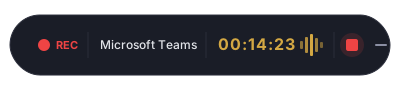
One click to start. Everything is captured locally.
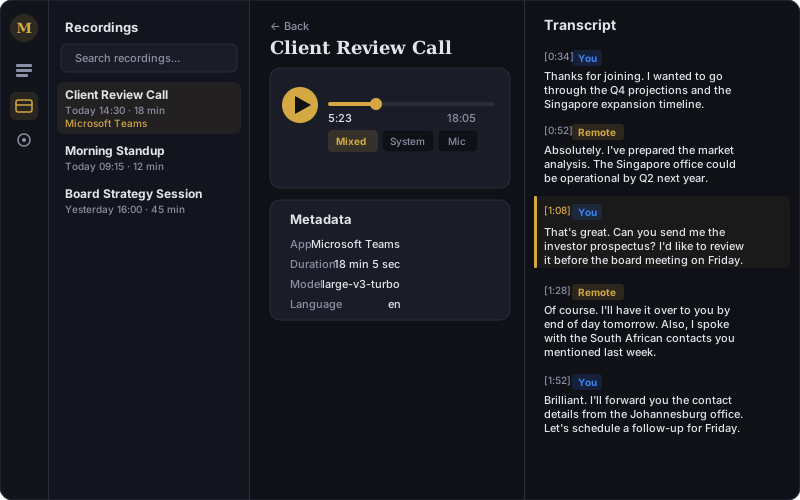
Read through what was said, with speaker labels and timestamps.
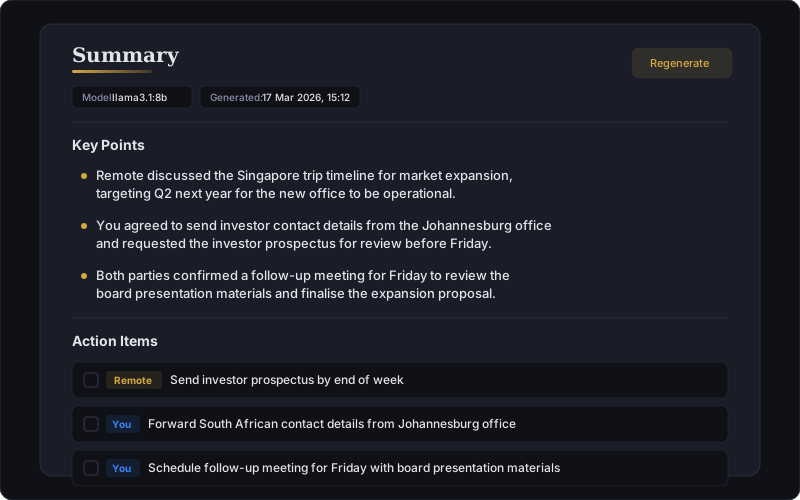
Generate meeting summaries and action items using a free, local AI engine.
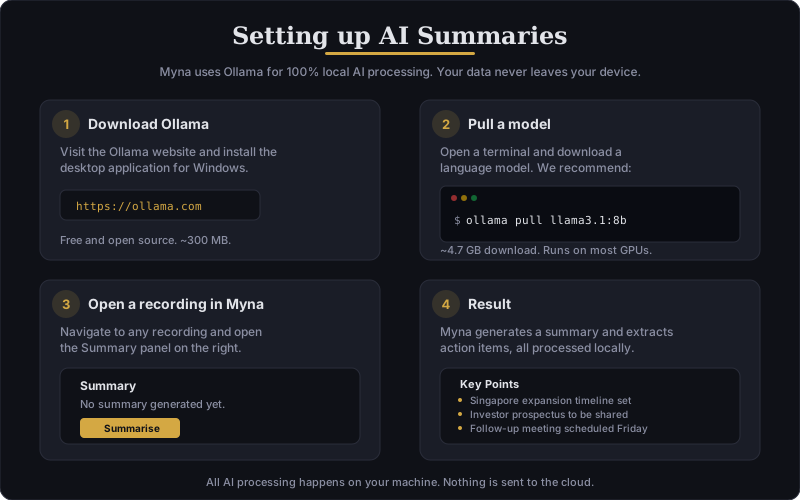
Ollama is a free, open-source AI engine that runs entirely on your computer. It powers Myna's summary and action item features. Because Ollama runs locally, your transcripts never leave your device — not even for AI processing.
Win + R, type cmd, press Enter) and run this command to download an AI model:
ollama pull llama3.1:8bThis downloads the Llama 3.1 8B model (~4.7 GB). It only needs to download once. The download may take a few minutes depending on your internet connection.
Once Ollama is running, open any transcribed recording in Myna and click the "Summarise" button. Myna will generate a meeting summary and extract action items — all processed locally on your machine.
Make sure Ollama is running — look for the Ollama icon in your system tray (bottom-right of your screen). If it's not there, open Ollama from the Start menu. You can verify it's working by opening a terminal and running:
ollama listYou should see llama3.1:8b (or whichever model you downloaded) in the list.
Try a smaller, faster model instead:
ollama pull phi3:miniPhi-3 Mini is only ~2.3 GB and runs well on most machines. Myna will detect and use it automatically.
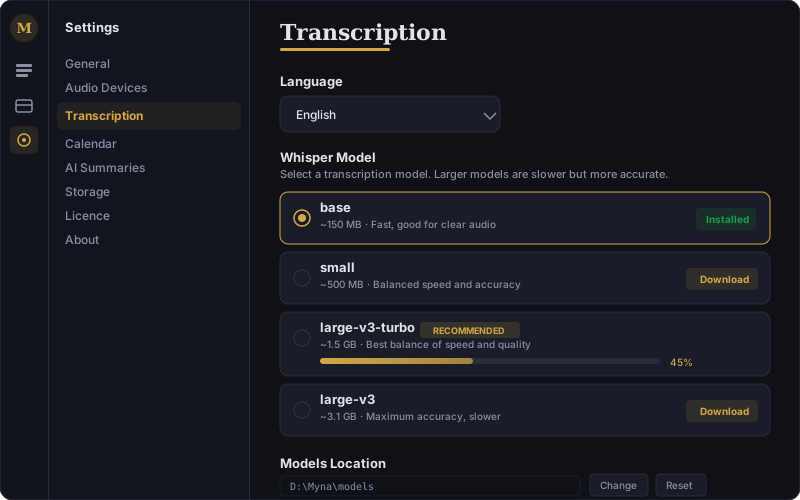
Get significantly more accurate transcriptions with a larger model.
Myna ships with the base transcription model, which is fast and works well for clear audio. For noticeably better accuracy — especially with accents, technical jargon, or overlapping speech — upgrade to the large-v3-turbo model.
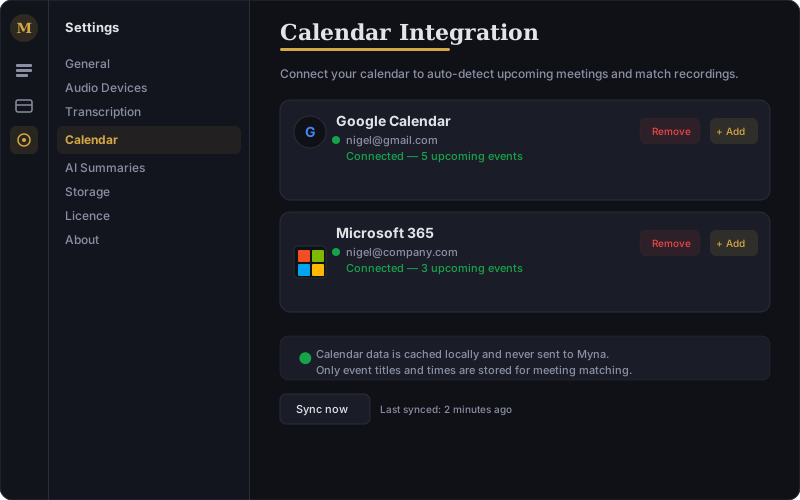
See upcoming meetings on your Dashboard and let Myna name recordings automatically.
Never forget to hit record again.
When Myna detects one of your selected apps starting a meeting, recording begins automatically. You'll still see the floating recording bar and can stop at any time.
A few things that are handy to know.
Closing the window doesn't quit Myna — it keeps running in the system tray (bottom-right corner). Right-click the tray icon for quick access to start/stop recording.
All recordings are saved to Documents/Myna as standard M4A audio files and JSON transcripts. Open them with any media player or text editor — no lock-in.
Use the system tray menu to start and stop recording quickly without opening the main window. Perfect for when you're already in a call.
Can't find what you're looking for? We're here to help.